Reporting

Saved Searches

Do you find yourself often doing the same query searches?  ExtraView’s Saved Filters empowers you to save and recall your commonly used search filters.

To use Saved Filters simply go to the Query screen and select the desired Saved Filter from the list:
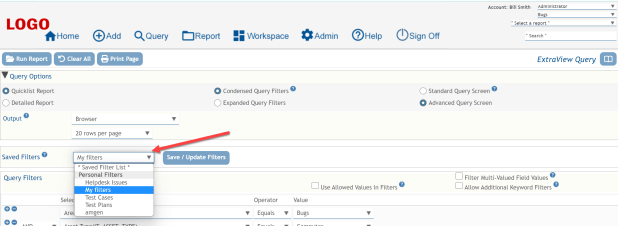
2023-01-31_17-52-07

For example, if I select from the list “My Filters”, then the query will render the filters I previously saved for “My Filters”:

2023-01-31_18-07-41

If I select “Test Cases”, then the query will refresh and render the filters I saved for “Test Cases”:

2023-01-31_18-06-50

From there simply select the Run Report button to run the query:
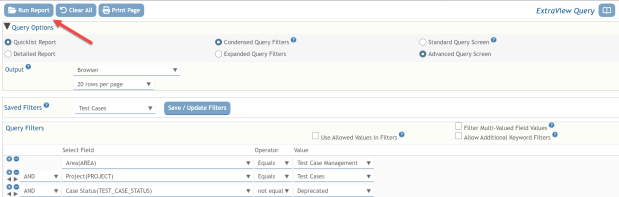
2023-01-31_18-20-32

To create a new Saved Filter, you first build up your query and then select the Save / Update Filters button:

2023-01-31_18-27-15You will be presented with a popup that allows you to either create a new Saved Filter or update an existing one.  Just give your new query a name and press the Save button:
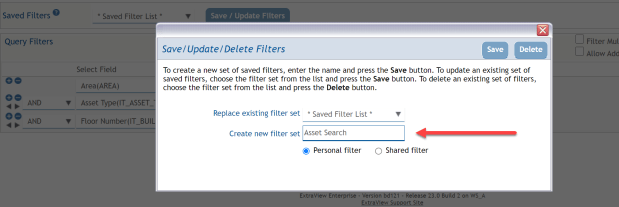
2023-01-31_18-35-08

Your newly Saved Filter is now available in the list:
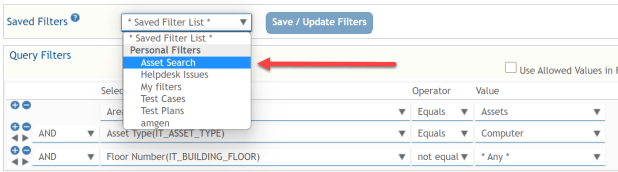
2023-01-31_18-38-56

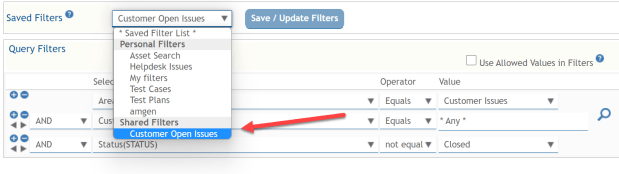
Saved Filters can be either Personal for your own use, or they can be Shared for use by others:
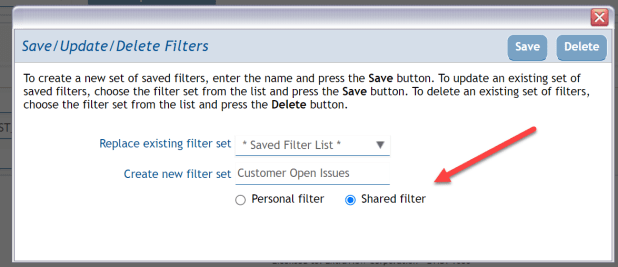
2023-01-31_18-54-13

Your new Shared saved filter is now available and it will be visible for use by other users:
2023-01-31_18-58-06

Right-Click to Add New Records

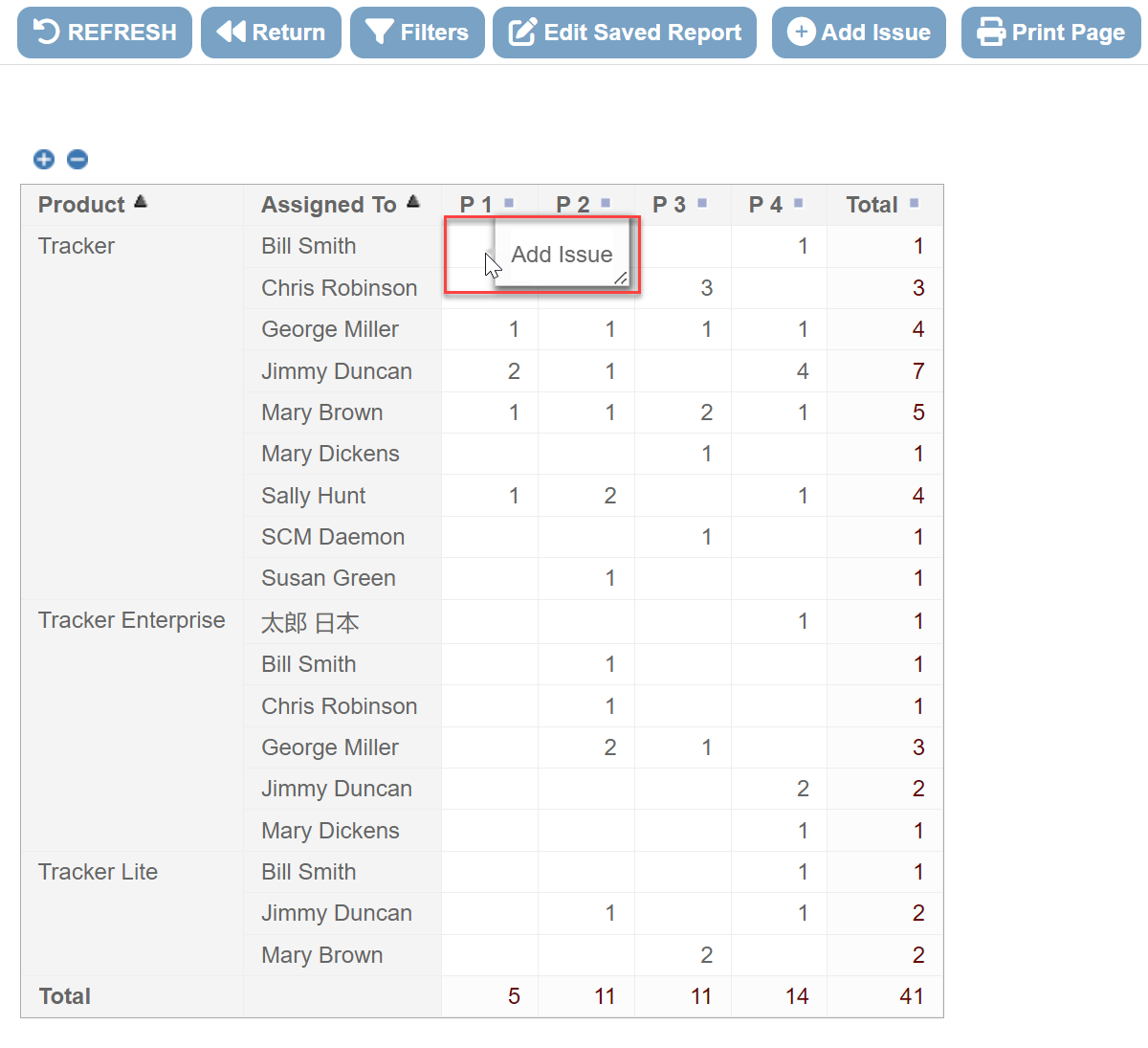
ExtraView gives you the ability to right-click on a report to add a new record with all the properties of that cell and report filters. This can be a really efficient and intuitive way to add new records.

In the following example I have a matrix report that is grouping records by Product, Assigned To and Priority. When I right-click on any one cell of the report, it will allow me to add a new record that has all the properties of that cell. Thus, in the example below I am right-clicking on the first cell where Product = Tracker, Assigned To = Bill Smith, and Priority = P1

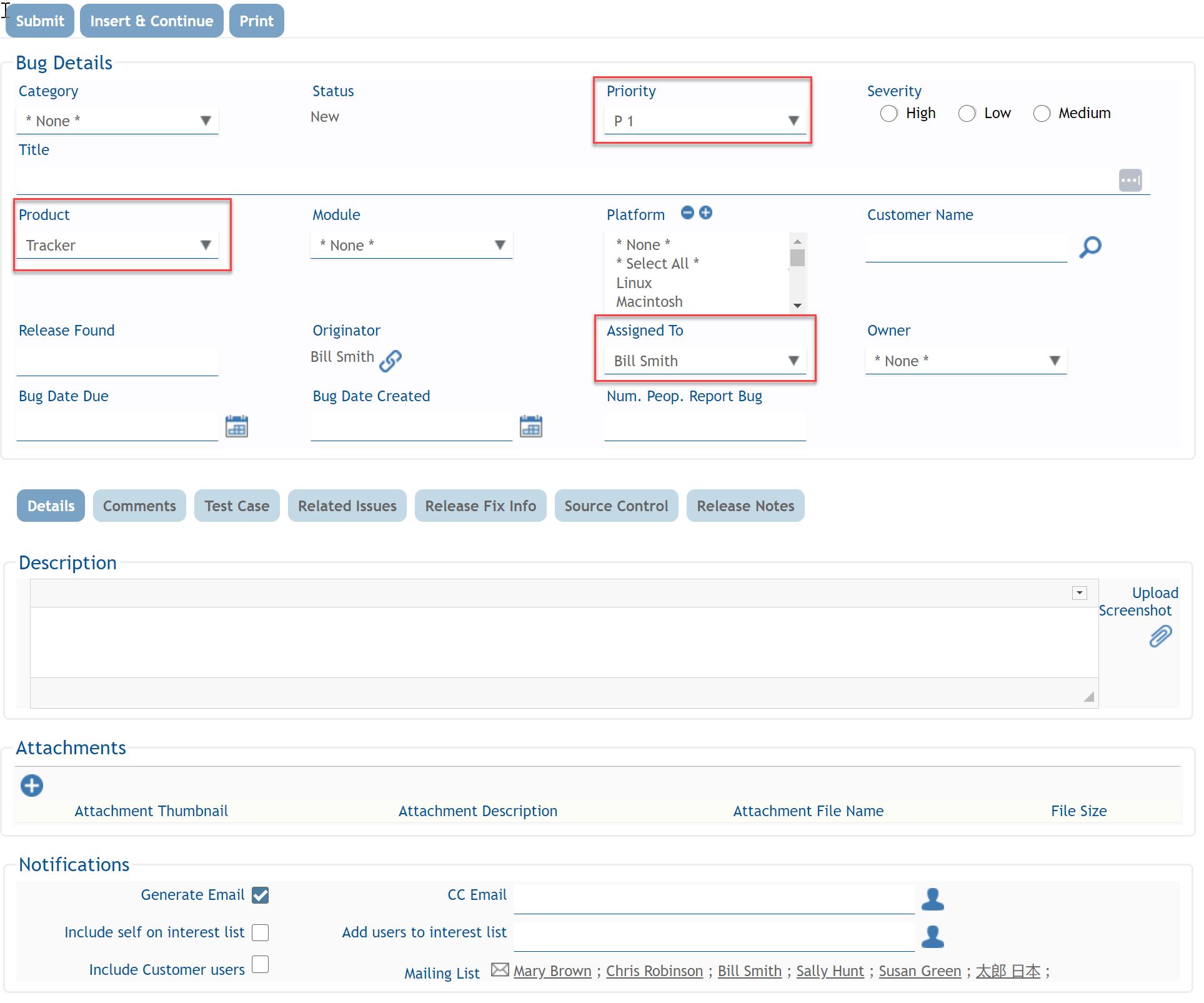
When I do this, I am presented with the following screen where I can create the new record. Note that the Product, Assigned To and Priority fields are already prepopulated with the values from the report cell (i.e. Product = Tracker, Assigned To = Bill Smith, and Priority = P1):

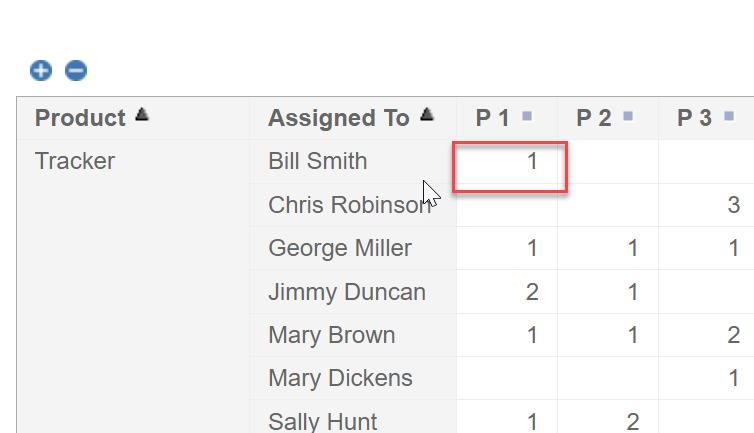
When I finish filling out the other details of that new record and submit it, my report automatically refreshes and includes my newly created record:

This can be a really efficient and intuitive way of adding new records.

To start using this feature, just select “Allow addition of issues” on your report editor:

Leveraging Existing Expertise in a Changing Environment

Over the years, I’ve worked with a wide variety of customers, from software development groups, to energy companies, to banks.  When we get brought in on a project, many times it is because a decision has been made that the existing business processes and procedures are not working, and it’s time for a change.

Change is not universally embraced, however.

One of the frequent requests that we hear during initial implementation projects, is that management needs a certain set of reports – and this is where they pull out The Spreadsheet.

Many companies have one (or more!) of these – the Excel spreadsheet that has been maintained and updated for years, becoming more and more complex with multiple sheets incorporating data sheets, chart sheets, pivot tables, complex formulas and formatting that makes it look *just* right. (more…)