With the release of version 21.0 users can enjoy nearly 80 new features and fixes covering reporting, workflow, mobile, administration, integrations, and GUI.
Uncategorized
ExtraView Releases Version 20.1
ExtraView released version 20.1, which contains 46 new features and 61 fixes:
ExtraView Releases Version 20.0
ExtraView has released version 20, a major release with dozens of powerful new features and fixes. Additionally, starting in version 20.0, ExtraView has changed it’s release numbering scheme such that the release number reflects the year of release plus a sequence number.
ExtraView Releases Version 12.0
With the release of version 12.0 users can enjoy nearly 140 new features and fixes covering reporting, navigation, workflow, notifications, mass updates, mobile, administration, integrations, and user interfaces.
ExtraView Releases Version 11.2
We have officially released version 11.2, with dozens of new features and fixes covering reporting, navigation, workflow, notifications,, mobile, administration, integrations, localization, workspaces, meta data migrations, user interfaces, and more.
ExtraView 10
We recently introduced ExtraView 10 with a bunch of new, exciting features. Here’s the highlights:
Workflow
- Many improvements to related issue displays when adding and updating issues, such as the inline addition of new record – no more popups!

- More choices when viewing issue history – including a new side-by-side comparison of successive issue updates
Querying & Reporting
- Redesigned report editors to make it simpler and quicker to produce your reports
- Three new chart types – Pareto charts, uCharts and cCharts for statistical quality control
- Completely redesigned matrix reports with the ability to break down results by time periods and to add statistical metrics. Also with the ability to produce comparisons with prior periods
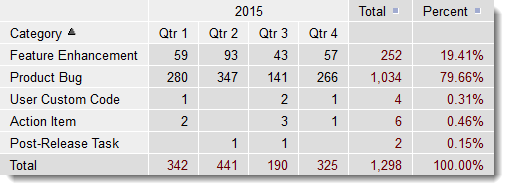
- A major new feature is a document repository. Store report output from scheduled reports for future access
- Easy access to search for any text anywhere within the database
- Print to PDF now supports landscape as well as portrait mode
- Time duration filters – e.g. show me all the issues fixed in the last quarter or in the last fiscal year
- Merge a Microsoft Word template with ExtraView data to print labels
Workspaces
- Additional drag-and-drop update capability
- Personal and Public workspaces
Mobile Client
- Several user interface improvements
Fuller details can be seen by clicking here. To upgrade and take advantage of these new features, give us a call at (831) 461-7100 and ask for Sales.
Get Fuzzy
One of my favorite scenes from the movie Bull Durham is the “Nobody gets woolly” scene:
Crash: Stop it.
Nuke: What?
Crash: It’s not woolly. Nobody gets woolly. Women get weary. They don’t get woolly. Nobody gets “stress.” They’re wearing a “dress.” I hate people that get the words wrong [referring to the song performed by Otis Redding “Try a Little Tenderness”].
That scene has nothing to do with ExtraView, but the word “fuzzy” does, and for some reason that reminds me of “woolly”.
Anyways, ExtraView Quick Find allows you to perform Fuzzy Searches. (more…)
Lightening the load – Quick Tomcat configuration tip #1
If you have configured Apache as a web server in front of the Tomcat application server for ExtraView, you will have configured a minimum of two JkMount lines.
JkMount /evj/ExtraView tomcat1
JkMount /evj/ExtraView/* tomcat1
When configured in this manner, all requests flow through Apache and to the Tomcat identified as tomcat1 in the worker.properties file. This Tomcat may be a single tomcat, or it may be a loadbalanced set of Tomcat application servers.
If you have multiple Tomcat instances configured, another option you can implement, simply by changing the configuration here, is to route all API requests – including Perforce or SalesForce integration requests – to a particular Tomcat instance.
All other requests – which are generally the interactive end-user requests through their browser – will be routed though another Tomcat instance (or set of loadbalanced Tomcats).
To implement this, we take advantage of the fact that we can identify all API requests based on the parameters that will be appended to the URL. All ExtraView API requests match the pattern “/ExtraView/ev_api.action” so we can configure the JkMount configuration such that all requests that match this pattern, are directed to a particular tomcat:
JkMount /evj/ExtraView/ev_api.action tomcat2
JkMount /evj/ExtraView/0* tomcat1
JkMount /evj/ExtraView/1* tomcat1
JkMount /evj/ExtraView/2* tomcat1
JkMount /evj/ExtraView/3* tomcat1
JkMount /evj/ExtraView/4* tomcat1
JkMount /evj/ExtraView/5* tomcat1
JkMount /evj/ExtraView/6* tomcat1
JkMount /evj/ExtraView/7* tomcat1
JkMount /evj/ExtraView/8* tomcat1
JkMount /evj/ExtraView/9* tomcat1
JkMount /evj/ExtraView/evSignon tomcat1
JkMount /evj/ExtraView tomcat1
JkMount /evj/ExtraView/ tomcat1
With the above configuration, all requests that end in “/evj/ExtraView/ev_api.action” will be routed to tomcat2 – and all other possibilities for URL requests are then itemized, and routed to tomcat1.
Why do this?
In many cases, API requests are generated programmatically, hit the server often and potentially quite hard in a regular pattern. The Perforce and SalesForce daemons are a good example – they “hit” the application every 10 seconds or so, to poll the system and see if there is any work to do. Data warehouse integrations can perform large queries to pull back all the changes to all tickets in the last 12 or 24 hours. Subversion integrations can have a trigger than runs every night to close all tickets that have been open and untouched in more than 30 days.
End users of the human variety, on the other hand, are much more unstructured in their use of the application, and tend to access the tool in a less systematic way . Because they are staring at the screen, waiting for a response to their mouse click, end users are also more sensitive to any delays than a script or daemon.
By splitting out the workload in this way, we can reduce the potential effect of any API calls on the response time for your end users who are interacting with ExtraView through the forms and screens – which makes for happier users!
You can also accomplish the same thing by providing different URLs for daemons and API users – but this method allows you to publish a single URL to access ExtraView, and still retain the option of splitting API traffic – either now, or in the future.
Who got the email?
One of the more popular feature requests we received from customers, was to keep track of which users were sent email notifications on each update. This is useful for providing an audit trail that ensures that the right people have been notified at each step in the ticket workflow – something that can be particularly important in an environment where there are service level agreements in place.
History on email notifications has been being collected in your ExtraView system since version 6.5 – with a few minutes of configuration, you can make it visible.
To enable Notification History, you must first enable permissions on a special field in the data dictionary called NOTIFICATION_HISTORY.
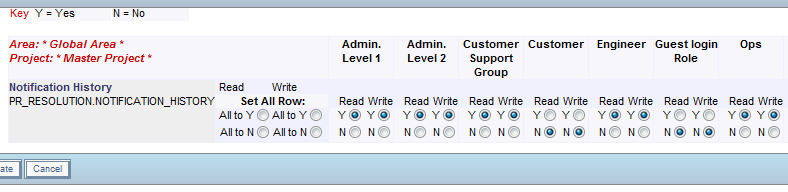
If your system is configured to use Abbreviated History (ABBREVIATED_HISTORY = YES in Behavior Settings), you’re done!

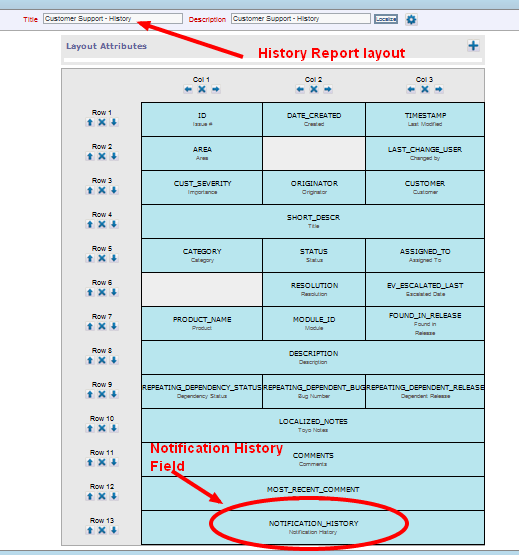
If your system is configured for History using layouts (ABBREVIATED_HISTORY = NO) then you have one additional step –
Once you have configured the permissions on this field, add it to your History layout using the Layout Editor. ( If the below screenshot is unfamiliar, note that it is of the new Design Center layout editor in the 7.0 version of ExtraView.)
Edit a ticket, and click the History button to see:
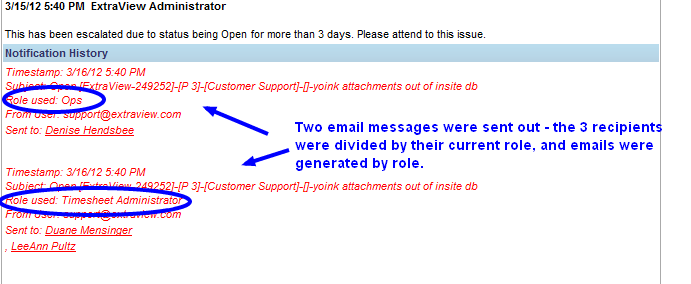
The information available in the Notification History section includes the timestamp of the update, the subject line used for each email, the “from” email address of the outgoing email, the list of users that particular message was sent to, and the Role of each email message generated.
Standard ExtraView email notification is generated by role. Based on the mailing list of users to be notified, we identify the current role of each recipient, and create an email message for each needed role. In this way, we ensure that each recipient receives an email that matches the security permissions for field visibility, of their current role.
Document Management Tip – Document Fields
In ExtraView you can create an unlimited number of user defined fields (“UDFs”). UDFs can take various forms, such as lists, radio buttons, check boxes, text areas, dates, etc. UDFs can also be Document fields.
Document fields store document files of any type, such as spreadsheets, PDFs, Word documents, etc. Document fields are similar to attachments in that they allow you to upload and store files in records. Also, like attachments, security can be configured to determine who can upload, view, and/or remove documents. Additionally, you can perform keyword searching on files stored in Document fields. (more…)
 ExtraView Blog