Do you find yourself often doing the same query searches? ExtraView’s Saved Filters empowers you to save and recall your commonly used search filters.
To use Saved Filters simply go to the Query screen and select the desired Saved Filter from the list:
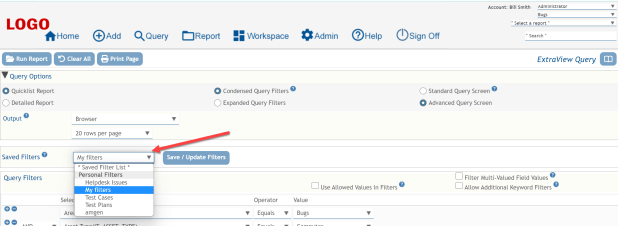
For example, if I select from the list “My Filters”, then the query will render the filters I previously saved for “My Filters”:

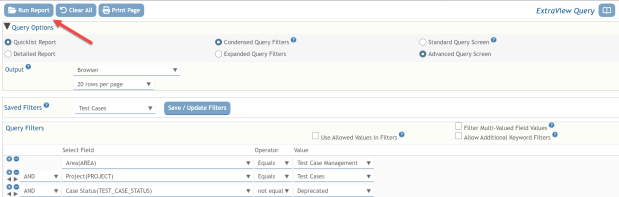
If I select “Test Cases”, then the query will refresh and render the filters I saved for “Test Cases”:

From there simply select the Run Report button to run the query:
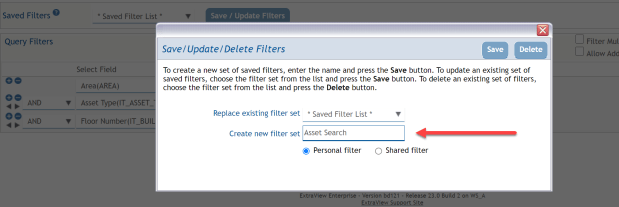
To create a new Saved Filter, you first build up your query and then select the Save / Update Filters button:
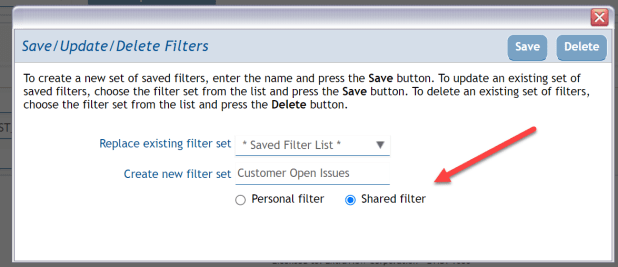
 You will be presented with a popup that allows you to either create a new Saved Filter or update an existing one. Just give your new query a name and press the Save button:
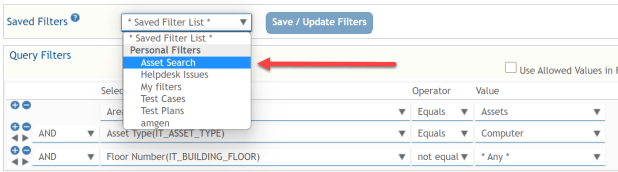
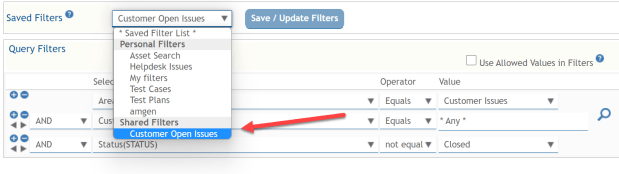
Your newly Saved Filter is now available in the list:
Saved Filters can be either Personal for your own use, or they can be Shared for use by others:
Your new Shared saved filter is now available and it will be visible for use by other users:
 ExtraView Blog