One of the more popular feature requests we received from customers, was to keep track of which users were sent email notifications on each update. This is useful for providing an audit trail that ensures that the right people have been notified at each step in the ticket workflow – something that can be particularly important in an environment where there are service level agreements in place.
History on email notifications has been being collected in your ExtraView system since version 6.5 – with a few minutes of configuration, you can make it visible.
To enable Notification History, you must first enable permissions on a special field in the data dictionary called NOTIFICATION_HISTORY.
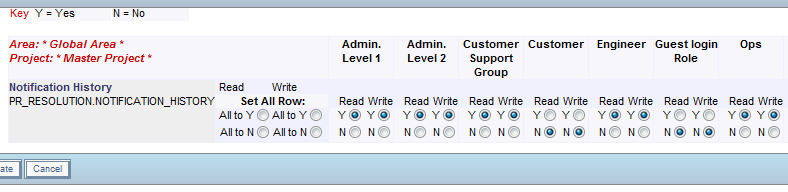
If your system is configured to use Abbreviated History (ABBREVIATED_HISTORY = YES in Behavior Settings), you’re done!

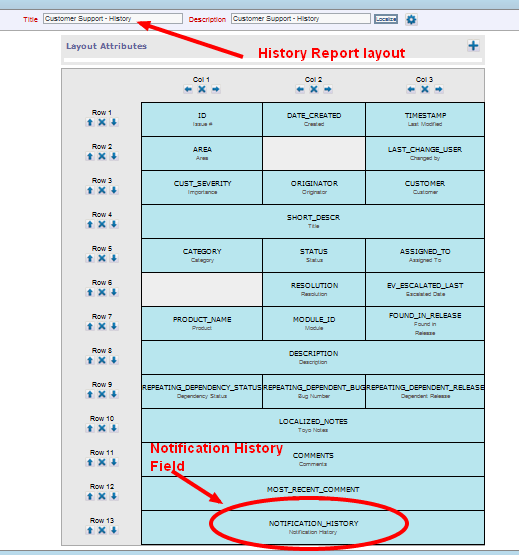
If your system is configured for History using layouts (ABBREVIATED_HISTORY = NO) then you have one additional step –
Once you have configured the permissions on this field, add it to your History layout using the Layout Editor. ( If the below screenshot is unfamiliar, note that it is of the new Design Center layout editor in the 7.0 version of ExtraView.)
Edit a ticket, and click the History button to see:
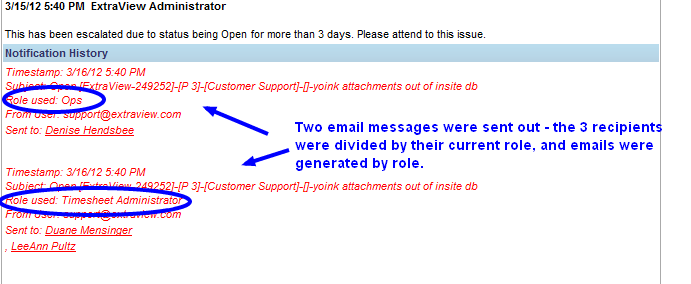
The information available in the Notification History section includes the timestamp of the update, the subject line used for each email, the “from” email address of the outgoing email, the list of users that particular message was sent to, and the Role of each email message generated.
Standard ExtraView email notification is generated by role. Based on the mailing list of users to be notified, we identify the current role of each recipient, and create an email message for each needed role. In this way, we ensure that each recipient receives an email that matches the security permissions for field visibility, of their current role.
 ExtraView Blog